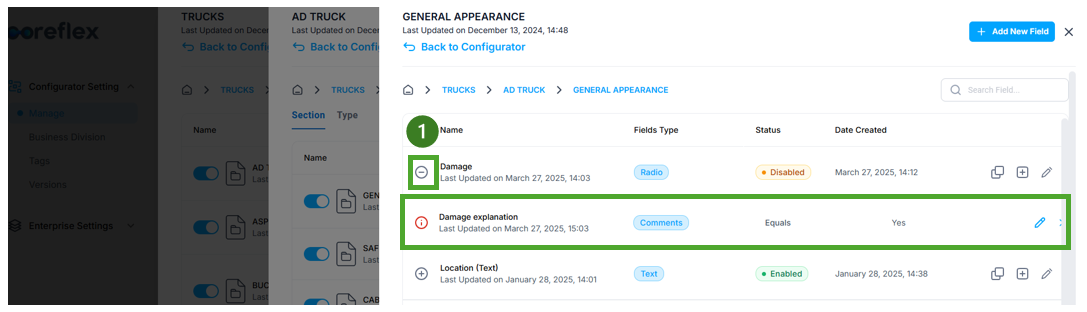
Can I add any rules to the fields in my marketplace?
At field level, it is possible to introduce rules around your inspection report fields. These rules allow you to set up conditional paths for your marketplace where more information might be required but not across all options selected.
For example, if we have a “damage” field set up, where we have a simple yes/no answer to there being any damage, we can use the rule functionality to ask the user for more details should they enter a specific answer.
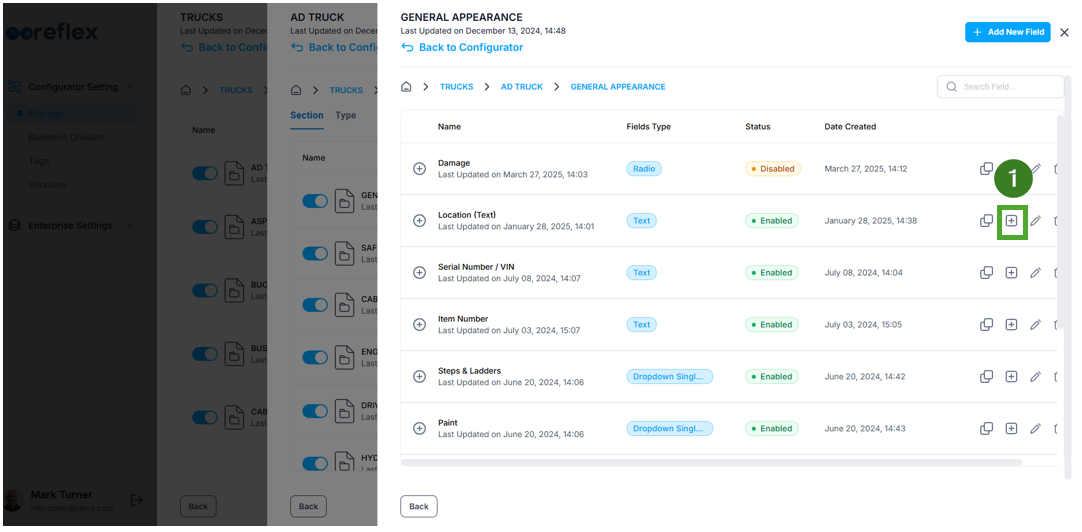
When on the field level of your coreflex, you can add rules to certain types of fields using the “Add Rule Field” (1).
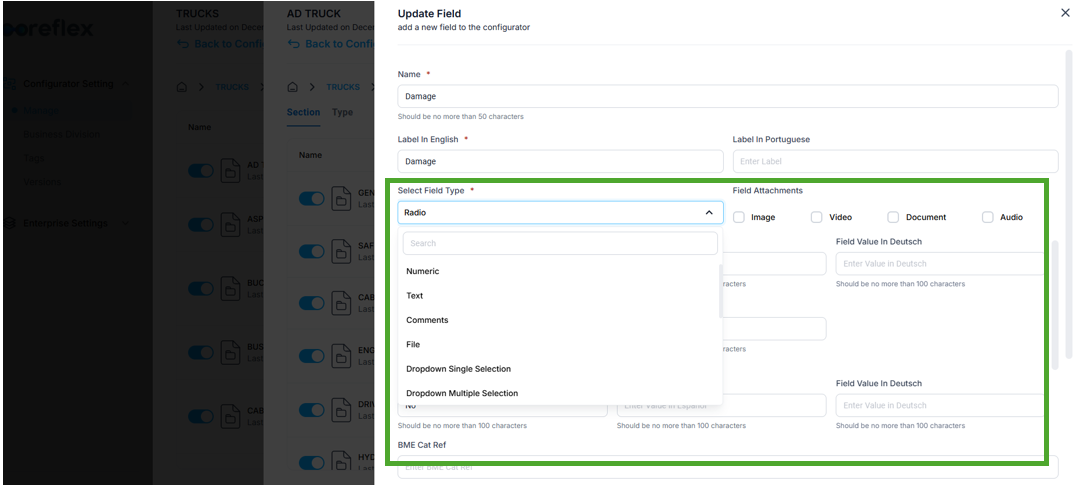
However, the first step to take is to understand how the field we wish to set the rule up to is structured. What are the current responses available and how are they submitted (radio, dropdown, Numeric, etc). You will find this by editing the field or creating a new one and looking at “Select Field Type” and the related “Field Values”.
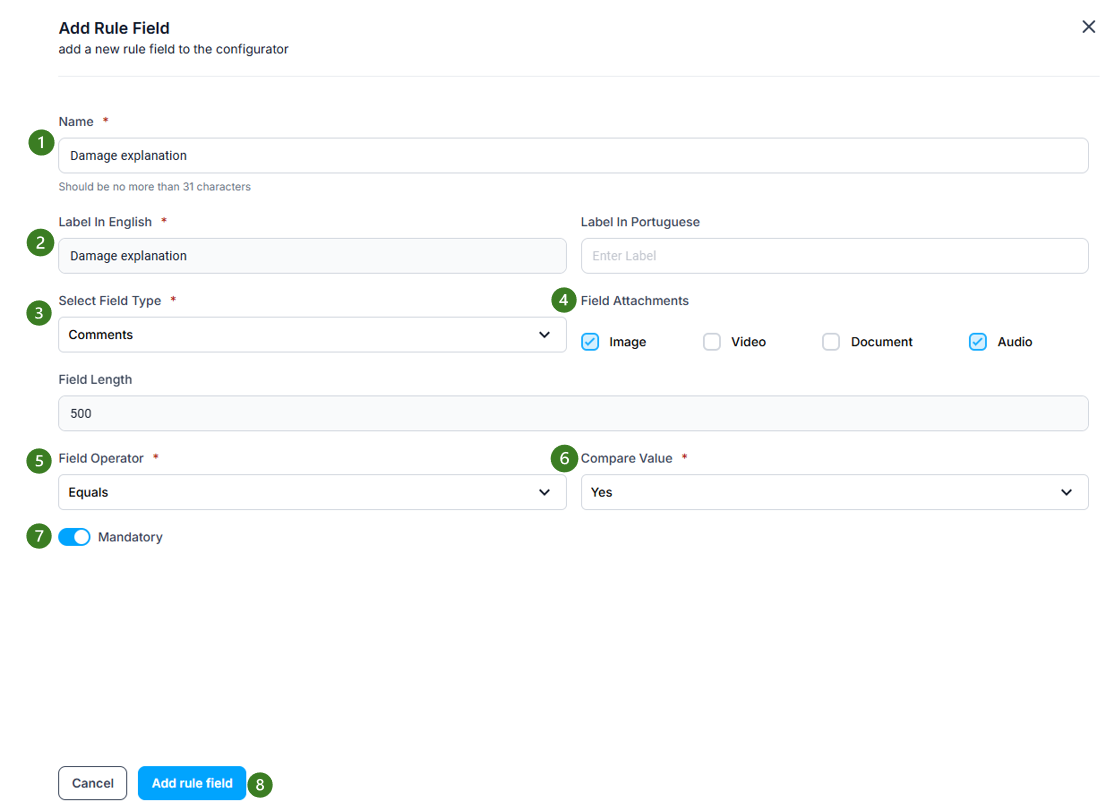
Once you are confident on the field setup, you can go back to the field level dashboard and click “Add Rule Field”. A new page will appear where you can configure your rule:
Name (1): what is it you want this rule to be asking the user. For example “Damage explanation”
Label (2): in the languages you require title this new section. For example “Damage explanation”.
Select Field Type (3): How do you want the new field set up? (Radio, Text, Rating, Calendar, etc)
Field Attachment (4): Do you wish to allow the user to attach Image, Video, Document or Audio?
Field Operator (5): Depending on the “Field Type” of your original field (Damage in this example) you will have options on how to set up your rule. So in this example as Damage is a Yes/No radio type we only have two options for “Field Operator”- “Equals” or “Not Equals”.
Compare Value (6): Select the options from your original field that you wish the “Field Operator” to work on. In our example this will be either “Yes” or “No”.
Mandatory toggle (7): Do you want this rule to be completed by all users?
Once you are happy with the rule, click “Add rule field” (8).
Once rule has been created you can view, edit and delete rules by opening up the “plus icon” next to your field name (1).