How can I create a new category for my Marketplace?
Before starting creating a new category remember that on Coreflex includes a feature that allows you to add multiple languages to your Inspeq app. It currently supports English, Spanish, Portuguese, German, Italian and French. Do let your Customer Success Manager know if you need any additional Languages.
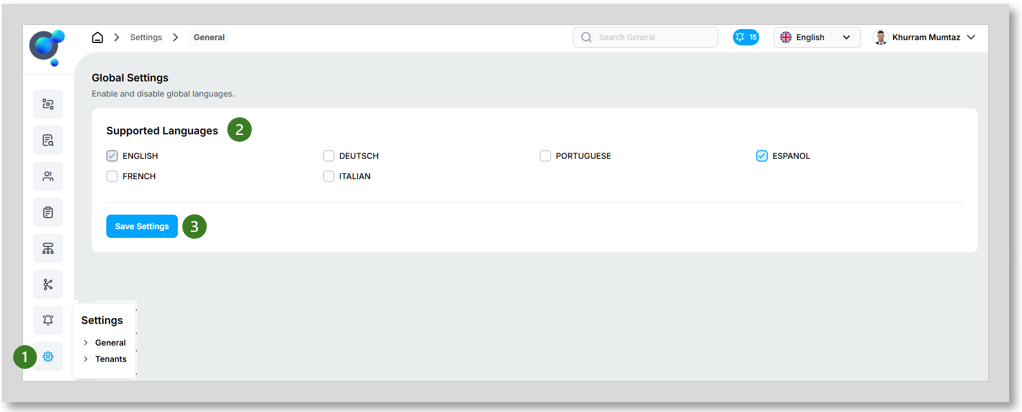
Go to the homepage, click on “General” under “Settings” (1), and select the Languages (2) you want to add to your Marketplace and click on “Save Setting” (3). However, it is important to note that while the app supports these languages, you will be responsible for providing translations for all elements within a category, including categories, sub-categories, sections, and fields.
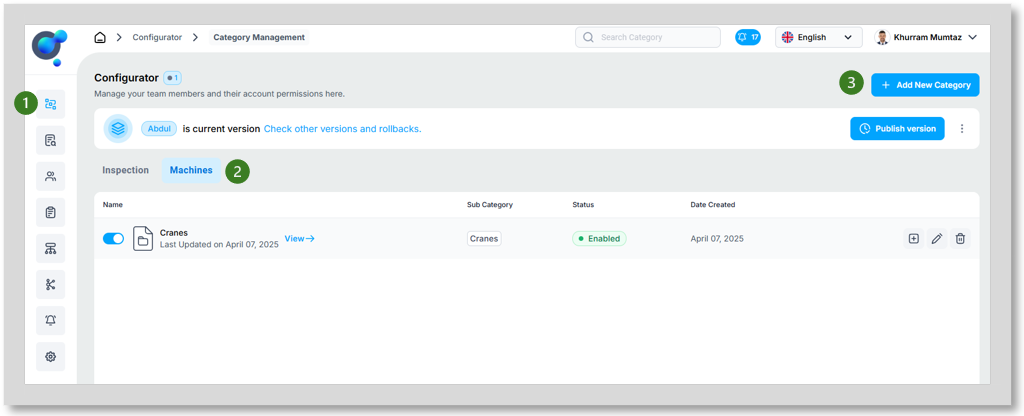
To create a new category, once you’re logged into your account, click on “Category Management” under the “Configurator” (1), ensure “Machines” is selected (2), and then click on “Add New Category” (3).
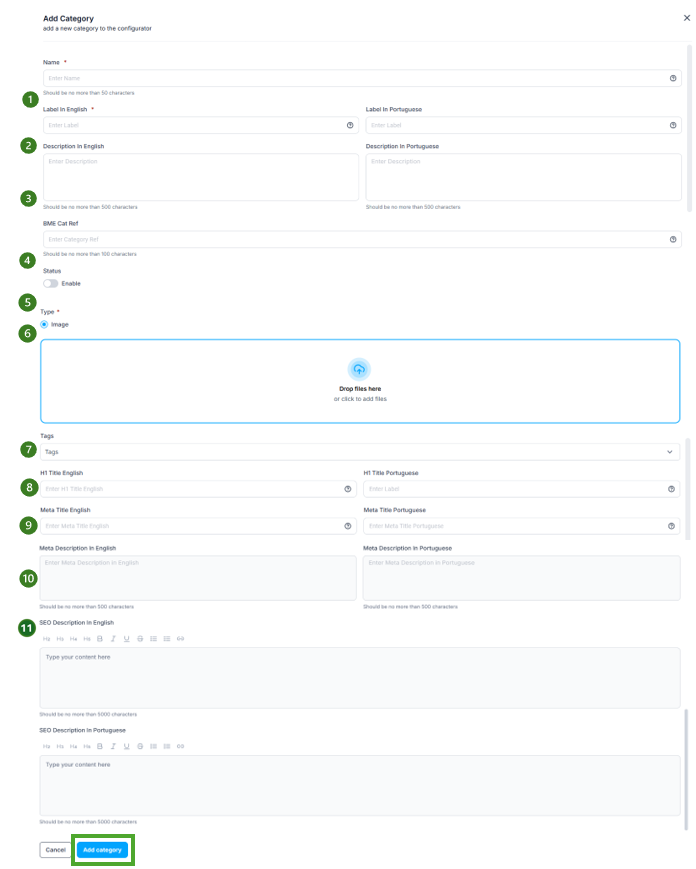
Start filling out all the fields presented in the new window:
Name (1): The internal name for the category.
Label in English (2): The public name of the category, displayed in English. If any other languages have been selected these will be available alongside the English field too.
Description in English (3): A description of the category, written in English. If any other languages have been selected these will be available alongside the English field too.
BME Cat Reference (4): This refers to an XML-based standard developed by the German association BME for the electronic exchange of product catalogue data between suppliers and buyers. It enables machine-readable data integration with systems such as ERPs, PIMs, and e-commerce platforms, ensuring efficient and accurate data communication in B2B transactions. If applicable, you can use this field to align your categories with external systems or catalogues. This field is optional and only necessary if it’s relevant to your workflows
Status (5): Enable or disable the category, this can also be updated later from the dashboard.
Type (Image) (6): This is not relevant for your marketplace, only Inspeq. However, this field is mandatory so upload a company logo or general stock image. This will not appear anywhere in your marketplace.
Tags (7): Include all relevant tags for this equipment type.
H1 Title English (8): set the primary heading of a webpage in English. If any other languages have been selected these will be available alongside the English field too.
Meta Title English (9): Set the title for search engine results and browser tabs in English. If any other languages have been selected these will be available alongside the English field too.
Meta Description in English (10): create a summary (typically 150-160 characters) that appears below the Meta Title in search results in English. If any other languages have been selected these will be available alongside the English field too.
SEO Description in English (11): Backend keywords search engine to crawl. If any other languages have been selected these will be available alongside the English field too.
Once you have filled out all the relevant information and you are happy to create the category then click on “Add Category”.