How do I start using Coreflex for Inspeq?
Once you log into your account, you will land on the homepage. From here, your journey with Coreflex begins.
TOP TIP: It is crucial to ensure that you are on the correct tab when configuring Inspeq. Coreflex is a tool used to configure both the Krank platform and the Inspection app, which is why following this step correctly is essential if you have both products with us.
You have five main sections to explore:
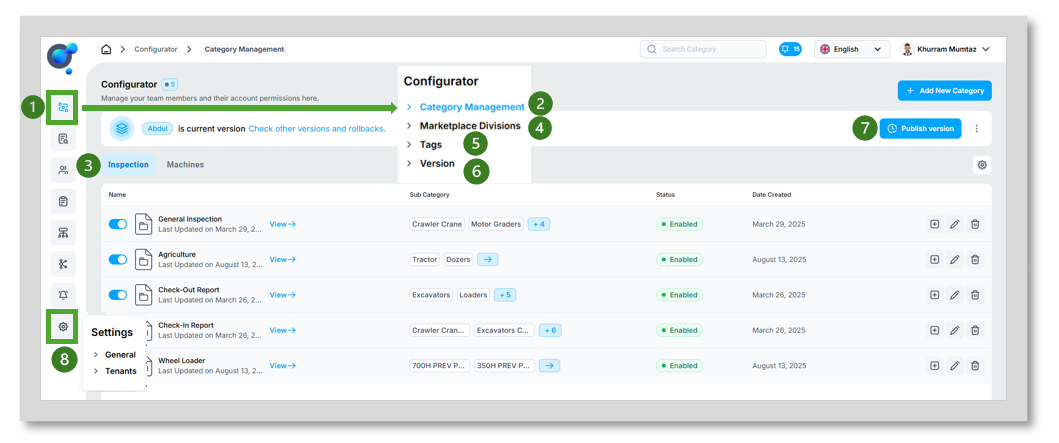
To configure your Inspeq categories and sub-categories, hover over the “Configurator” icon (1) and then on “Category Management” (2). Make sure that you are viewing “Inspection” configurations (3).
“Marketplace Division” (4) – This section allows the set up of additional divisions for your marketplace. This is not relevant to Inspeq.
“Tags” (5)- This section allows you to create and review your tags for marketplace configuration. This is not relevant to Inspeq.
To publish the current version of your configurations, to view past version updates, and to rollback to previous versions, click on “Versions” (6). It is also possible to publish current version using the “Publish version” button on the top right of the page (7).
To select which languages you wish to work with, click on “Settings” then “General” (8), “Tenants” allows you to set up domains for your user base.
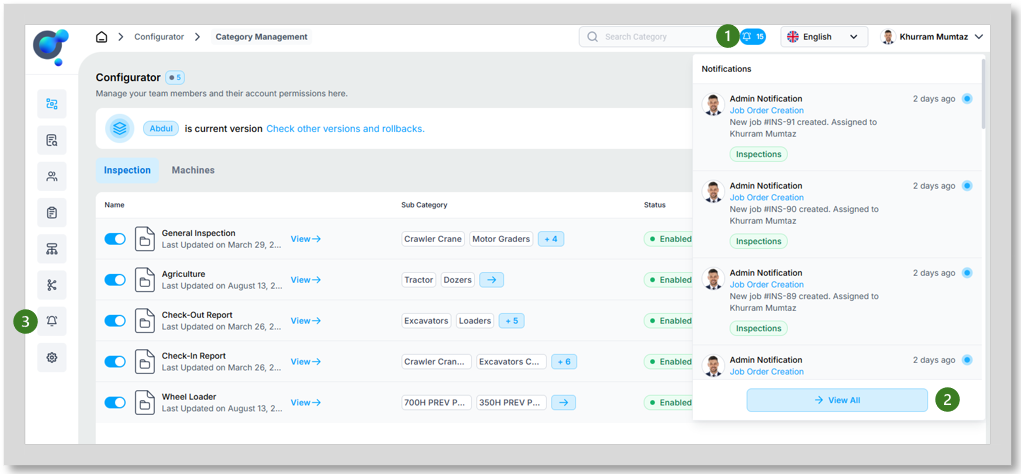
You can also view notification by clicking the “bell” icon in the top right corner (1) this will give a view of the latest activities for your account. You can explore further by clicking on “View All” (2) or by clicking on the notifications icon in the main navigation on the left of the page (3).
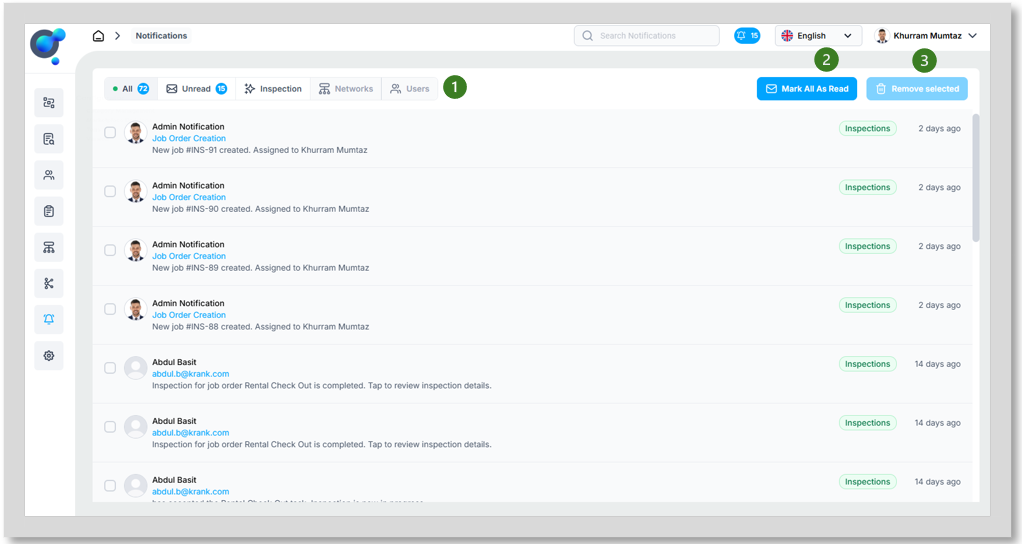
When through to the Notification Management page you can filter your notifications by “All”, “Unread” and then by type (Inspections, Networks and Users) depending on what is available (1). You can also quickly “Mark All as read” (2) and “Remove Selected” notifications (3).