
Inspections- Can I assign inspection tasks to my colleagues?
Yes! Coreflex allows you to create job orders that will be allocated to colleagues for them to complete a specific inspection type, on a selected equipment.
NOTE: You will need to use Inventory Management to have the equipment details to assign a job order to. This can be done through existing white label marketplace, integrating to your inventory database or manually creating on the site.
Under Inspections on the side navigation (1) you will find “Job Orders”, within this section you will have an overview of all job orders created which can be filtered by the “Assignee”, “Inventory” and/or “Status” (2).
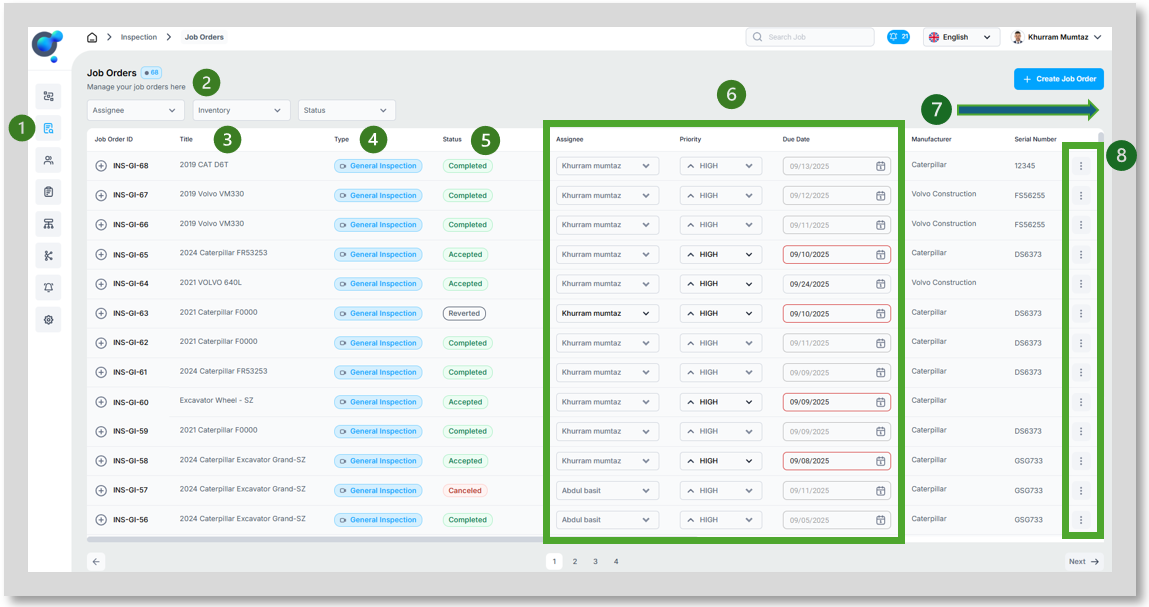
The overview then includes the following information of your job orders:
· Job Order ID and Title of your job orders (3).
· Type: what type of inspection was carried out- General Inspection or Rental (check in/check out) (4).
· Status (5): Confirmation on the status of the job order which includes:
o Completed- the job order is finished by the assignee and, where required, approved by job order creator or client.
o Accepted- job order has been accepted by assignee and awaiting completion.
o Pending- awaiting response from assignee.
o Reverted- Assignee has rejected the job order and now awaits assigning.
o Canceled- job order has been canceled by job order creator.
· Assignee, Priority and Due Date (6): These columns provide information on who the inspection has been assigned to, the priority set by the job order creator and due date they selected. It is also possible to change these factors in the overview depending on the status of the job order.
· Scrolling across the columns beyond “Due Date” will be confirmation of key data from the job orders focusing on the equipment itself, including “Manufacturer”, “Serial Number”, “Category” and “Sub-Category”(7).
· The final columns confirm who the job order was created by, the watchers added and Rental start/end date.
· Frozen column at the end (8) will show additional action points available depending on the status of the job order. This includes:
o View Report- view the inspection report created.
o View Details- view overview of the job order including activity timeline.
o Revert- send job order back to creator.
o Cancel- cancel job order.
o Edit- Change job order details.
o Create Discrepancy- where check in and check out inspections are available, create a discrepancy report between the two with AI.
o View Discrepancy- View the discrepancy report.