
Notification Management
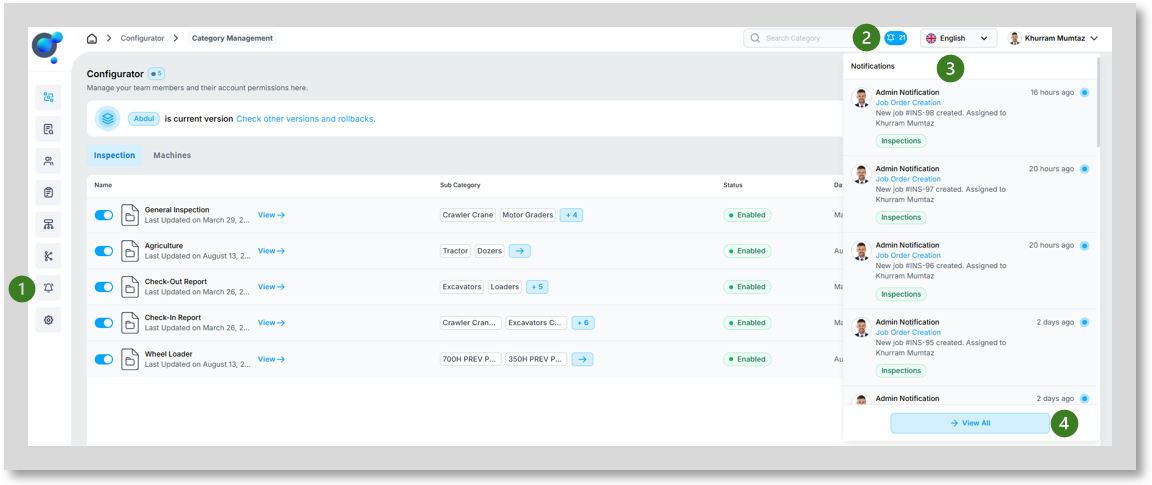
Two ways to view notifications:
Via “Notifications” (1) tab in the left navigation bar.
Click the bell icon (2) in the top right corner for the latest notifications.
When clicking the bell icon you will be able to scroll through the latest notifications (3). Click 'View All' to access the Notification Management page (4).
Once through to the Notification Management page you will have an overview of all notifications and activities.
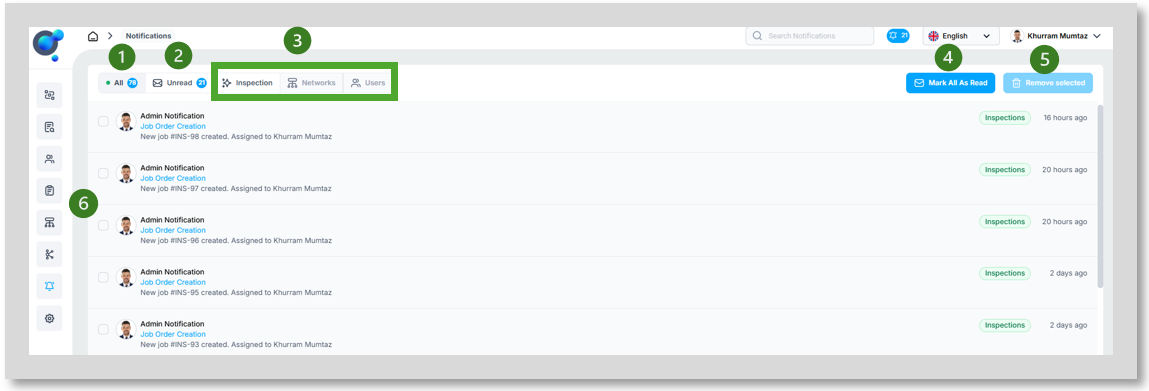
Options to filter notifications:
All: view all notifications (1).
Unread: View all unread notifications (2).
Filter by Notification Type (e.g., inspections, networks, users) (3).
“Mark All as read” across all your notifications (4).
“Remove Selected” notifications to ensure list is relevant and manageable (5).
Clicking on a notification links directly to the report, network or user details (6).