
User & Authentication Management - How do I manage my users?
Clicking through to “All Users” under the “User” icon (1) to view all users across all clusters and networks.
This dashboard also provides additional views and functionality:
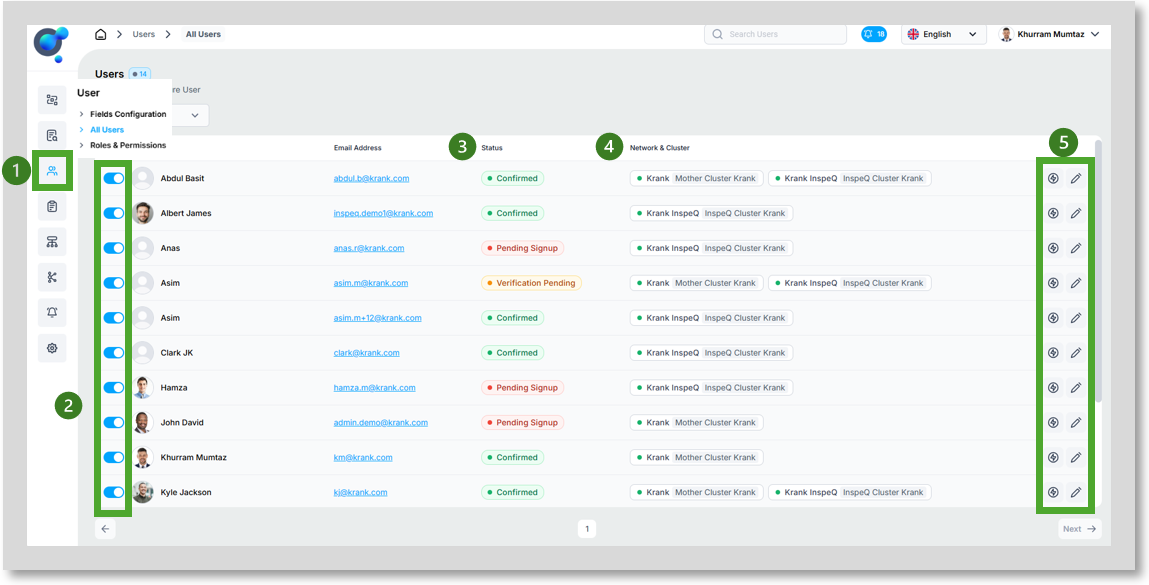
Toggle user access on/off (2) without deletion.
User details- name and email address.
Check verification status (3) of users (e.g., pending, accepted). This shows more detail on where in the process they have got to, compared to what is shown in Network Management. Can you this to provide more proactive support to users who are struggling with the sign-up process.
Confirmation of networks and clusters (4) user is set up on.
“Roles and Permissions” and “Edit user details” (5) opens a new screen
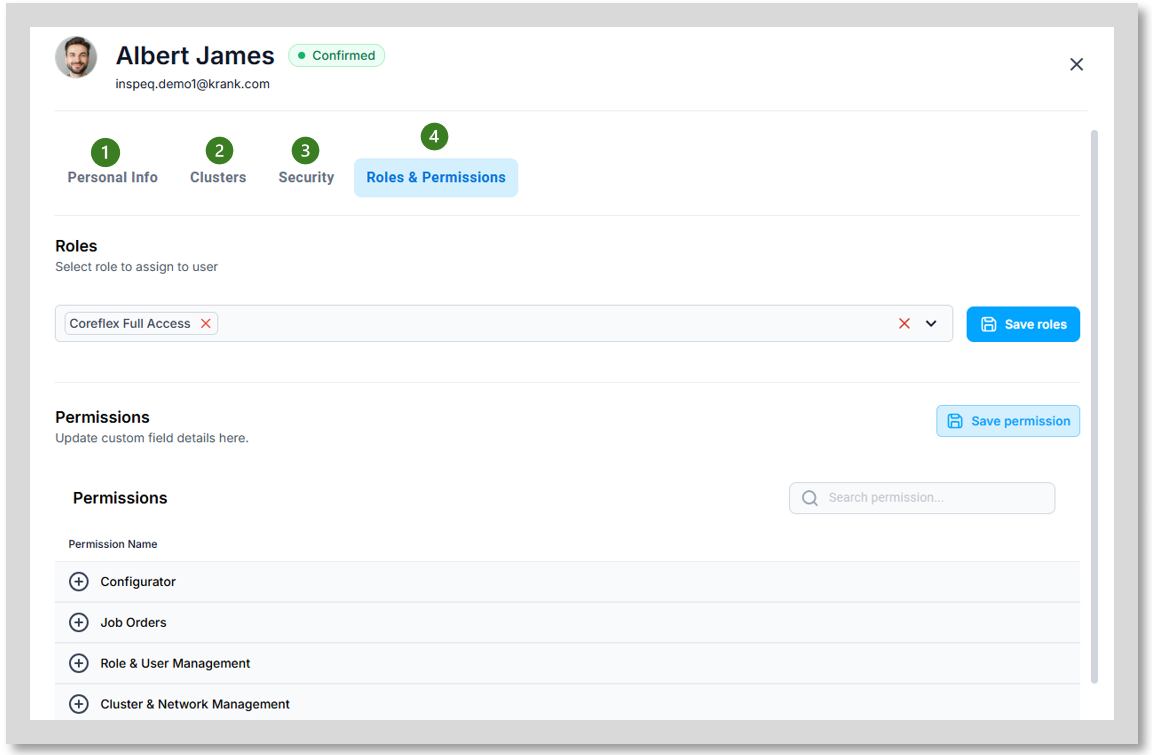
Personal Info (1)-an overview of user details that can be edited.
Clusters (2)- an overview of all networks and clusters user is set up on.
Security (3)- ability to change user password, send a password reset email to user or sign out of all sessions.
Roles & Permissions (4)- Select user roles and customize their permissions to have full control on what your users can and can’t do.