How do I create a Job Order?
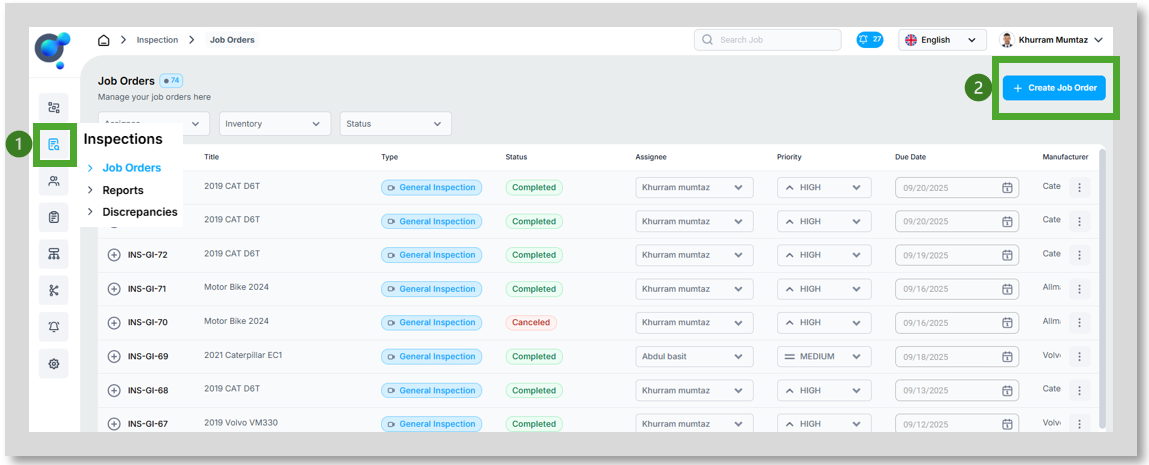
To create a job order, on the Job Orders page (1), click on “Create Job Order” in the top right corner (2).
This will open a new window that we will explore below.
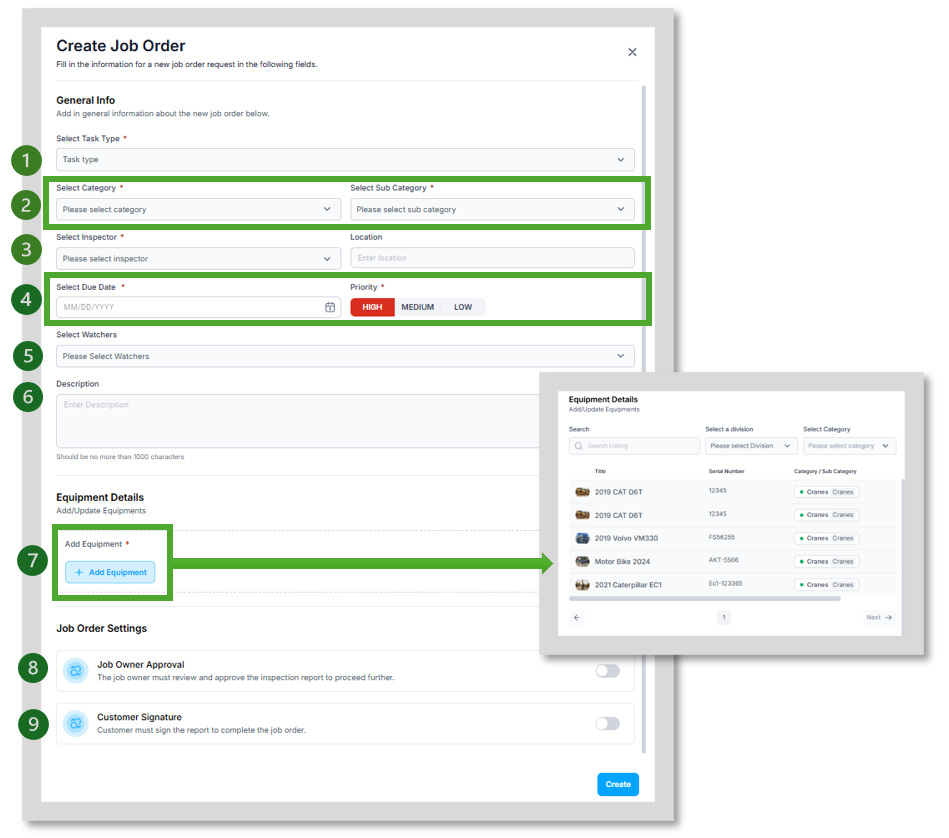
· Select Task Type (1) – Currently choose between General Inspection or Rental (Check In).
· Select Category and Sub Category (2) – Based on the configuration set up through your coreflex for Inspeq, you can choose the category and sub category options that the equipment will fall under.
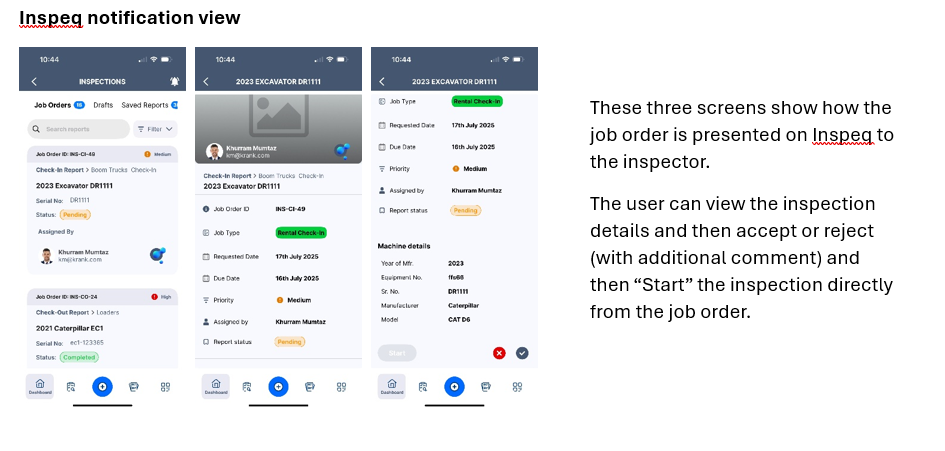
· Select Inspector (3) – select a colleague from the drop down to assign the inspection task to. They will receive a notification on their Inspeq app that is shown below.
· Select Due Date and Priority (4) – Select when the inspection needs to be completed by and priority level it should be treated as.
· Slect Watchers (5) – select a colleague from the drop down that requires oversight on the progress of the inspection report.
· Description (6) – include any commentary and notes relevant to the inspection report.
· Equipment Details (7) – select from your inventory management set up within coreflex a specific piece of equipment to inspect- if you have no inventory currently you can manually add in “inventory” or speak to your customer success manager about options to set up an inventory feed from your existing IMS.
· Job Owner Approval (8) - the job owner must review and approve the inspection report to proceed further.
· Customer Signature (9) - Customer must sign the report to complete the job order.